
Meta Business Portfolio
Access Guide
Managing access in the Meta Business Portfolio can get confusing quickly, especially when Facebook Pages, Instagram accounts, and multiple users are involved. This free guide will walk you through granting access, assigning assets and permissions, and checking that your Facebook and Instagram accounts are connected and cross posting properly. Just follow the steps below, or download the PDF for a printable version.
Step 1: Go to www.business.facebook.com. This will take you to the Meta Business Suite. This is different from the Meta Business Portfolio, although they are connected. See note below.
Step 2: Select your brand in the top left corner of your screen.
Step 3: Select the gear in the top right corner of the pop-up navigator.
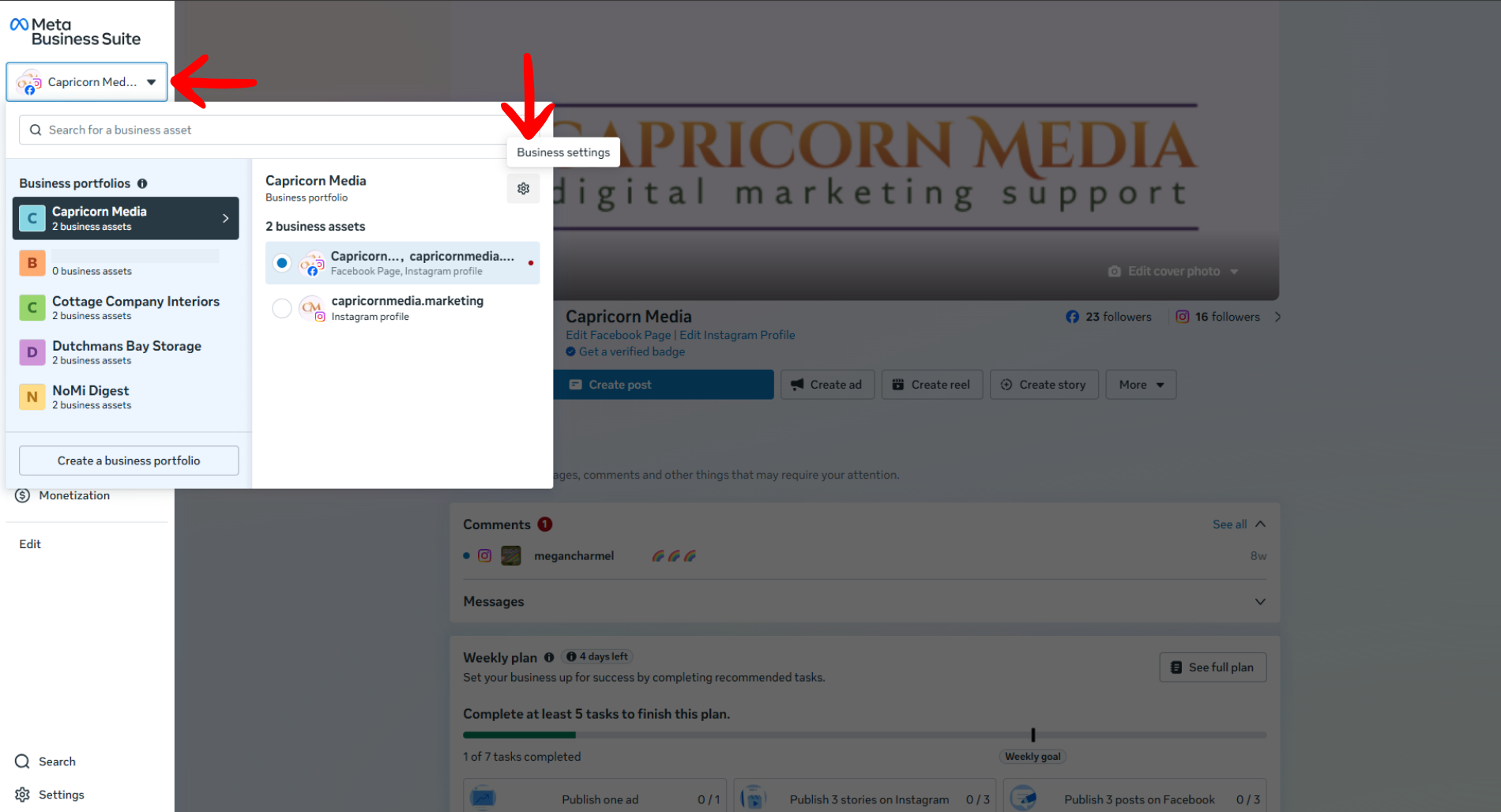
The Meta Business Suite is where you can view analytics, set up automations, schedule content, and more for your connected assets. The Meta Business Portfolio is where you connect assets and assign people to manage those assets.
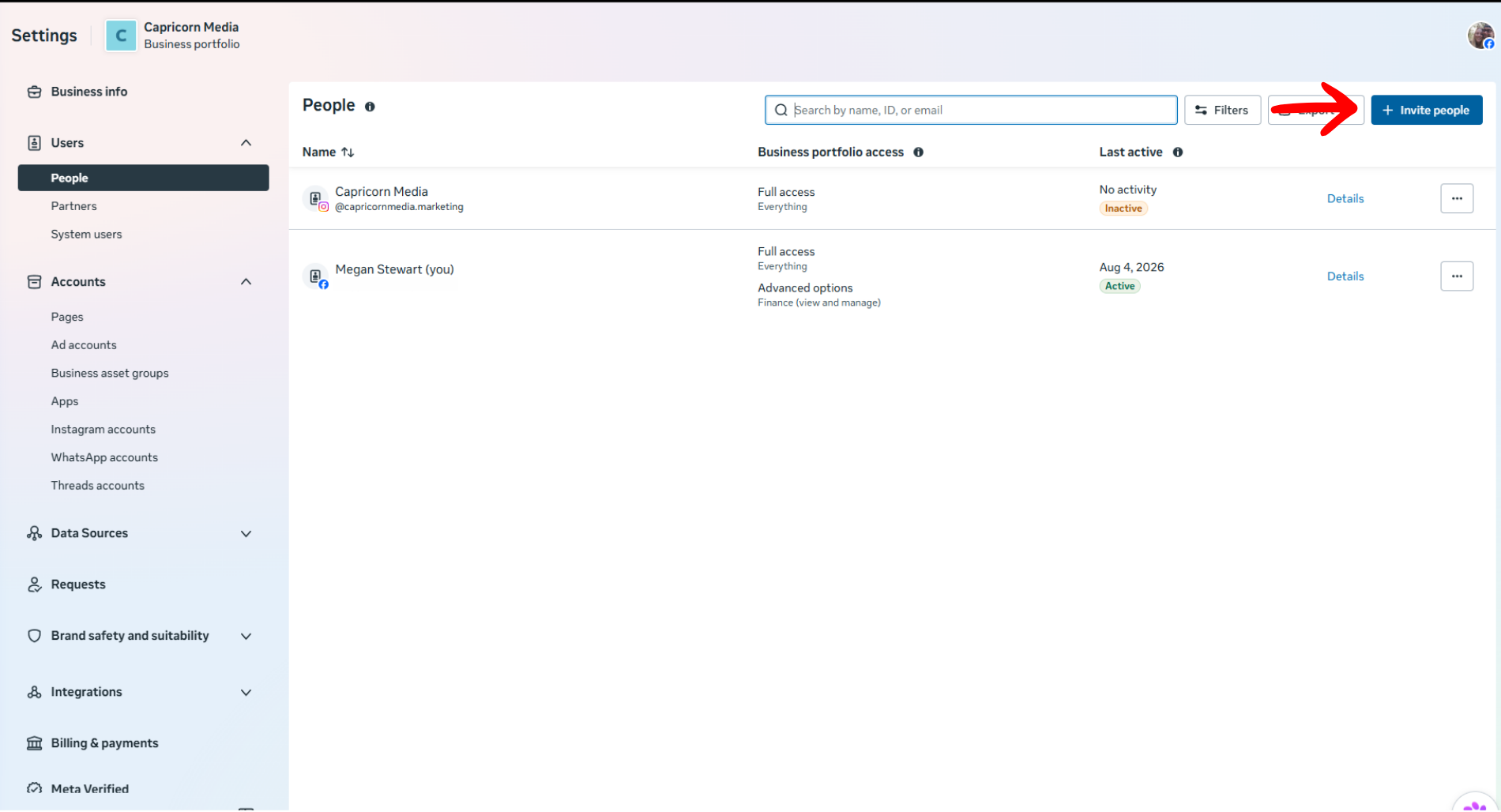
Step 4: Select the “Invite people” button.
Step 5: Enter the invitee’s email and select “Next”.
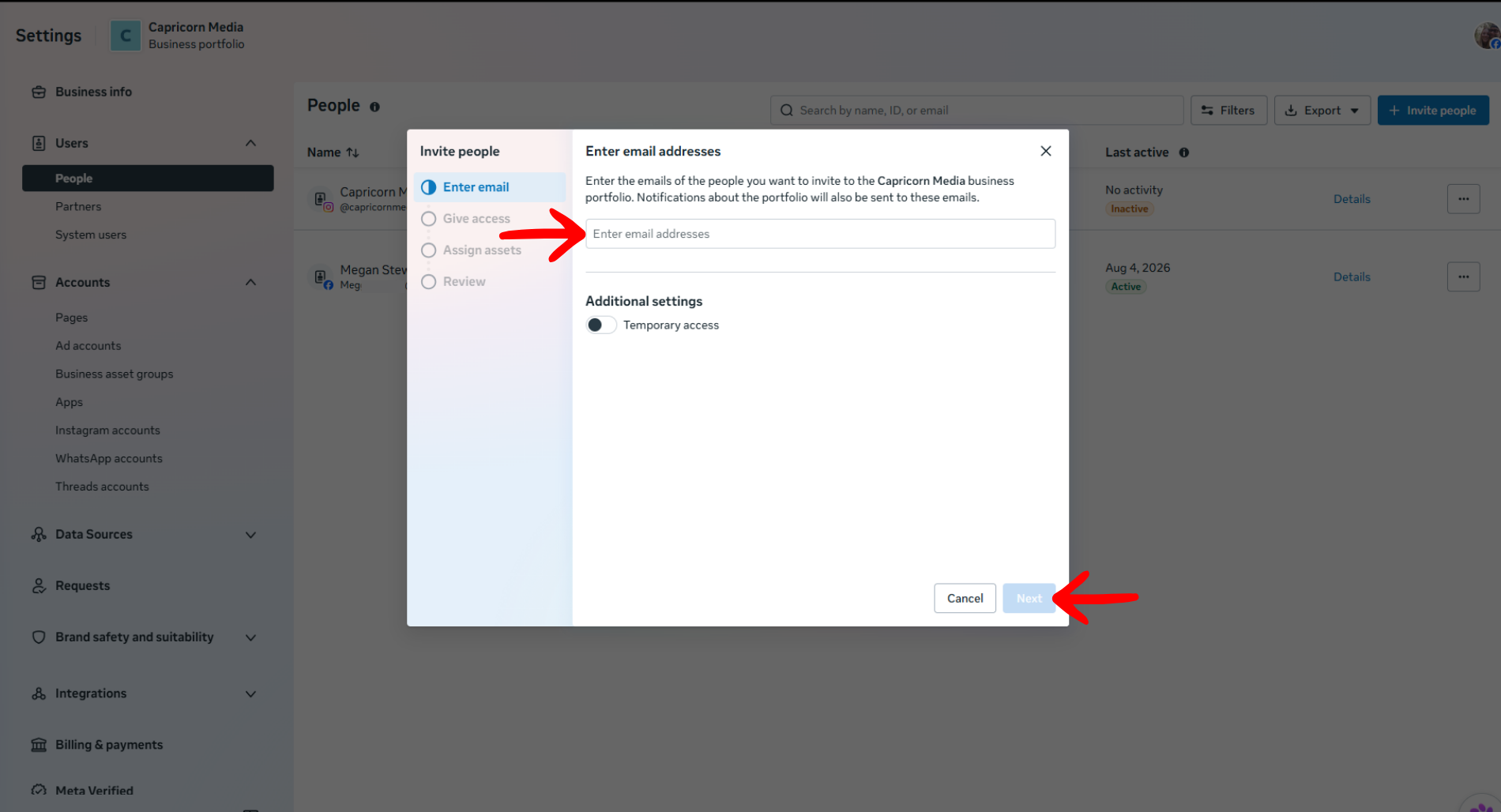
Once permissions are assigned, the invitee will receive a portfolio invitation to the email address you provided. This email often ends up in spam or promotions, so be sure to have your team member check all their folders.
Step 6: Choose your invitee’s permissions. The default is set to partial access. Be sure to toggle on any additional access you wish. I prefer to always have two admins in a portfolio in case one person gets locked out, but you don’t want to give full access to everyone. It must be someone you trust not to delete or compromise the business page.
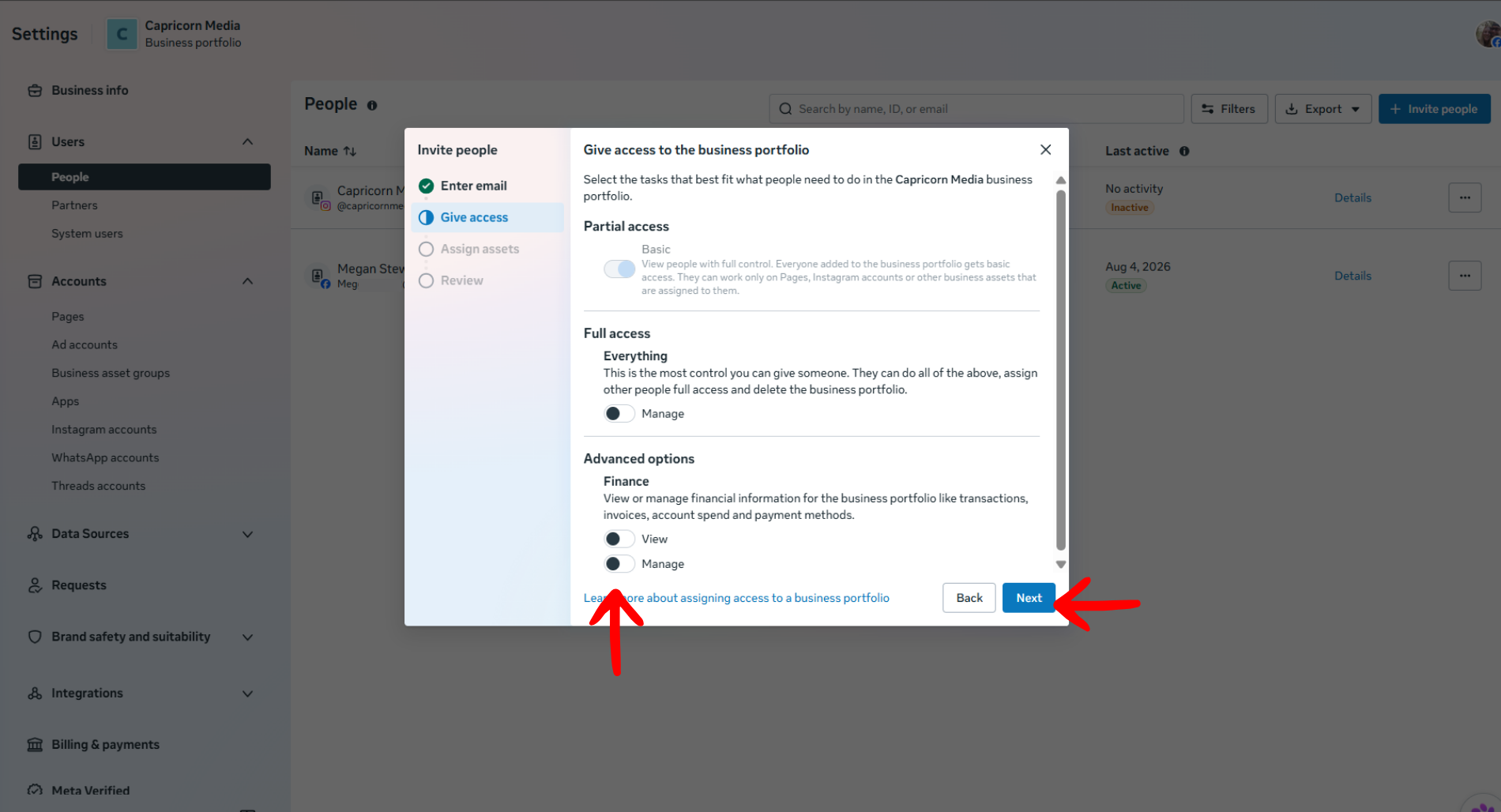
It is wise to require anyone in your portfolio to have two-factor authentication turned on for their personal Facebook accounts. This helps prevent page hacking via personal accounts.
Step 7: From the drop-down menu, select the assets you wish your new team member to have access to, and click next. As you can see in the screenshot below, I have the option to select the following assets: Facebook, Instagram, and the Ad account. These assets already live in our portfolio, so we are just selecting the ones we want the invitee to manage.
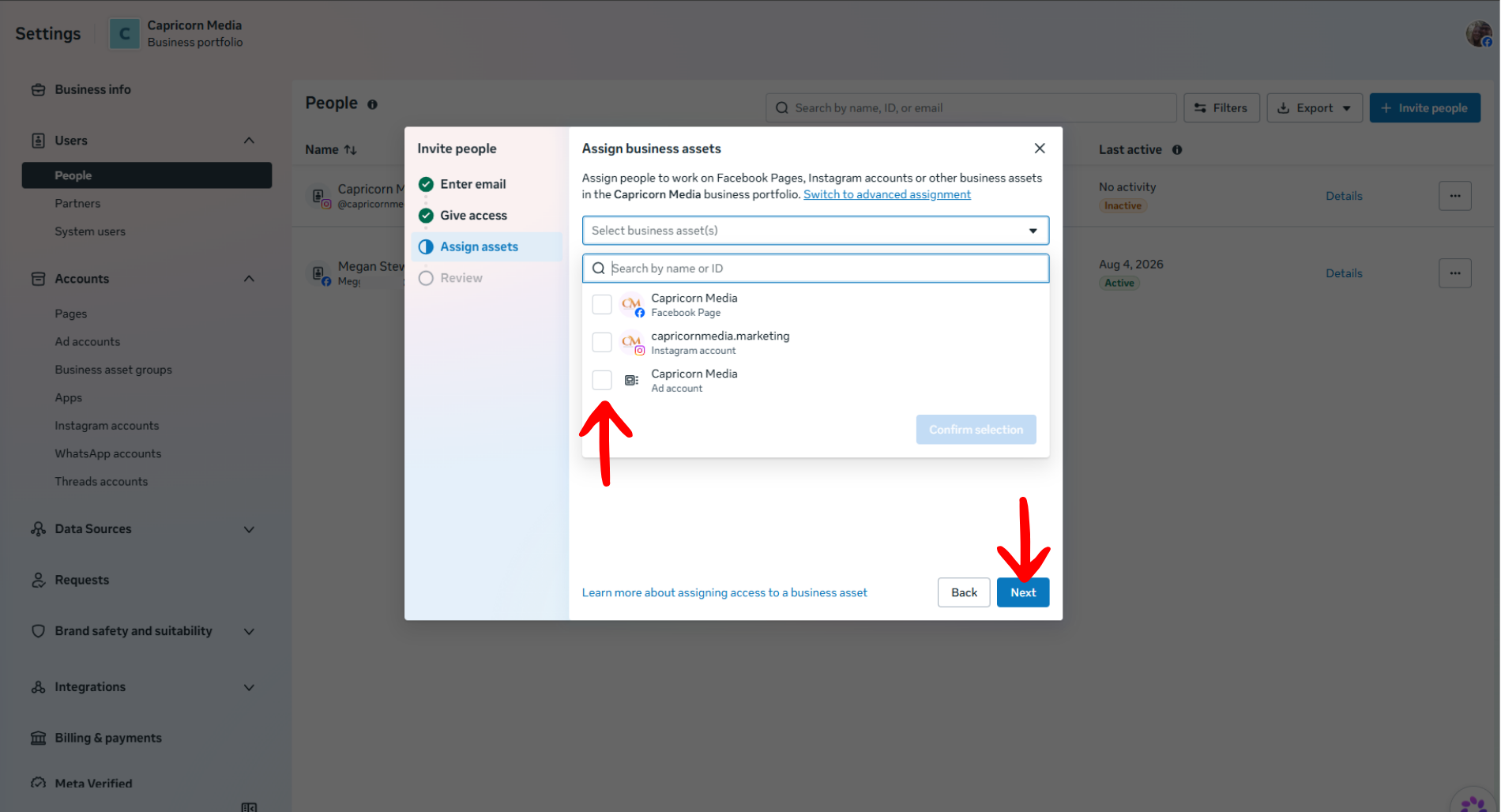
Only select the Ad account if your team member plans to run ads for you. Otherwise, they do not need access to this.
Step 8: Once you select your assets, you will choose which features your invitee has access to. Read through these carefully and toggle on your preferred features. Be sure to scroll all the way down through each one of your assets. Once you’re finished, click next.
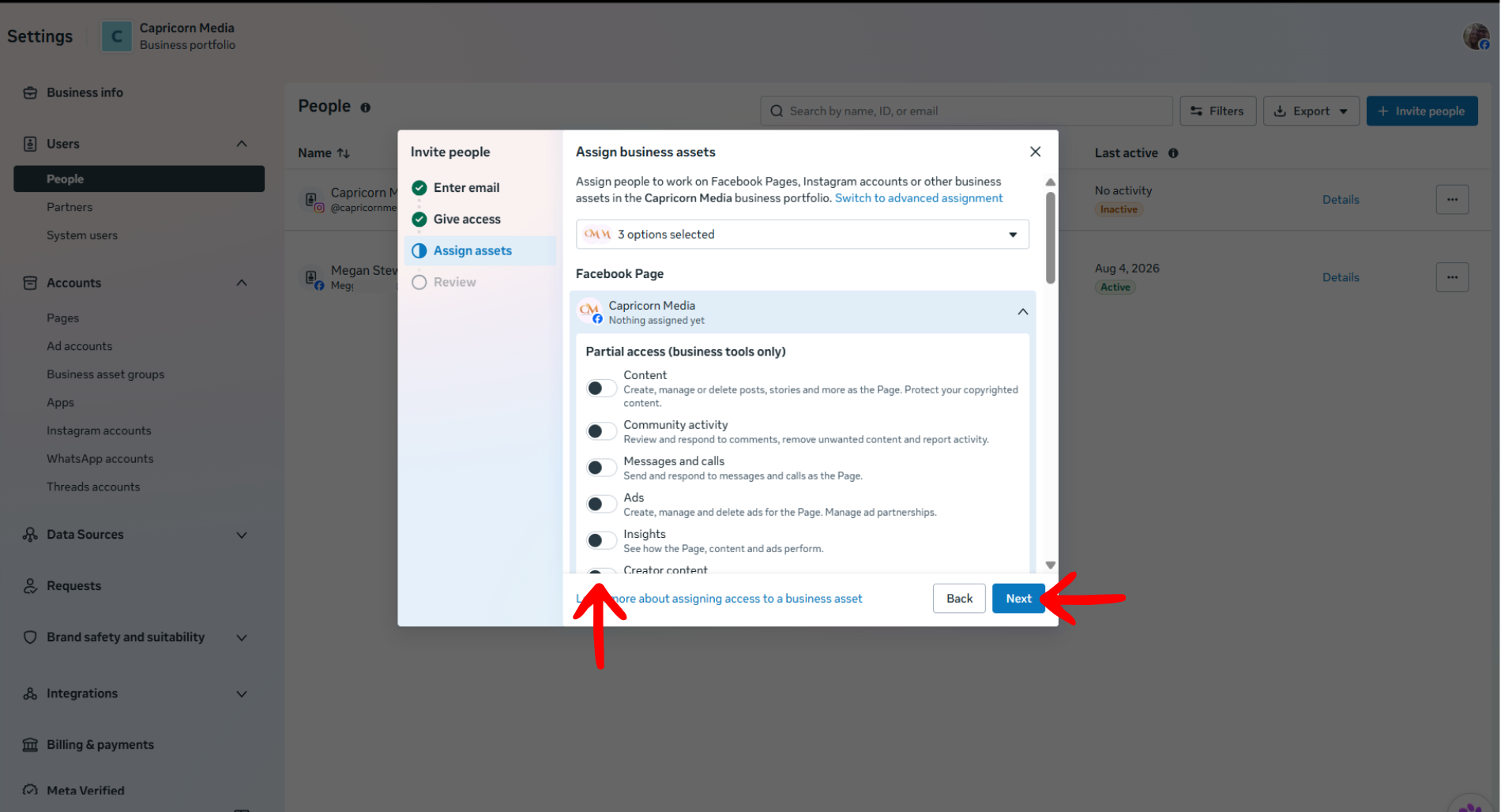
Admins should have access to all items. If you’re adding another admin, scroll down to toggle on full-access. If you’re adding a basic manager, you can be more selective about their controls.
Step 9: Review your invitation. Be sure you’ve entered the correct email address for your invitee. Once you’re confident that everything is correct, select “Invite with assets”. Mine says 3 assets, yours may have a different number depending on how many you’ve assigned to your invitee.
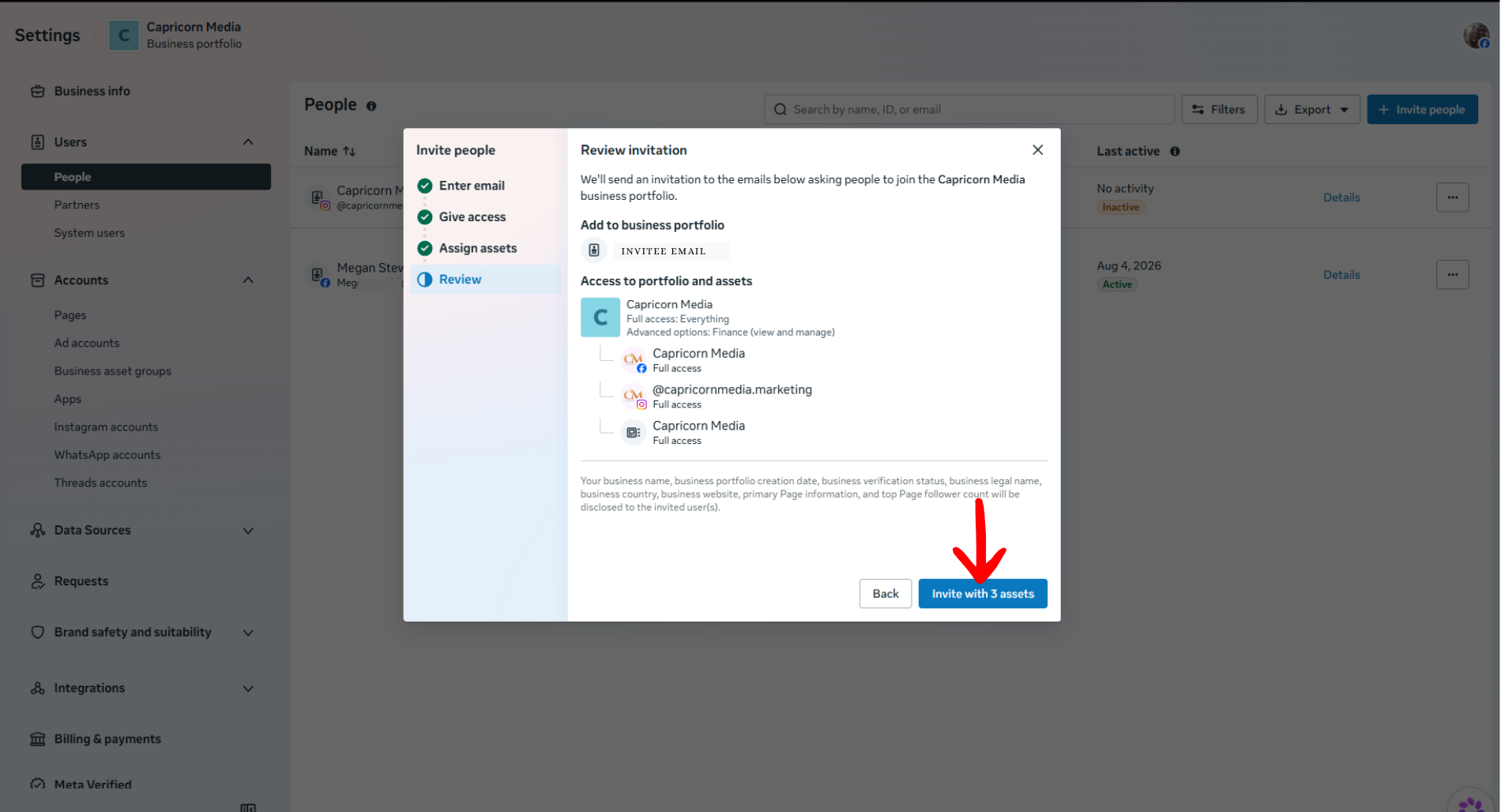
Your invitee will now appear on the “People” page under “Users” as a pending invite. Once they accept your invitation, it will show their access level next to their name.
If you need to change or adjust access for specific assets, you’ll need to find the asset under “Accounts”. Here, you can manage each person’s permissions for the individual assets. To edit Portfolio access, go back to the “People“ tab under “Users”.
To cross-post directly from Instagram, you must have full access in both the Portfolio and the Instagram asset settings.
Still stuck? Paid consultations are available for personalized setup and troubleshooting.